Chat Interface
uniGPT uses LibreChat as its web frontend, available at gpt.uni-muenster.de.
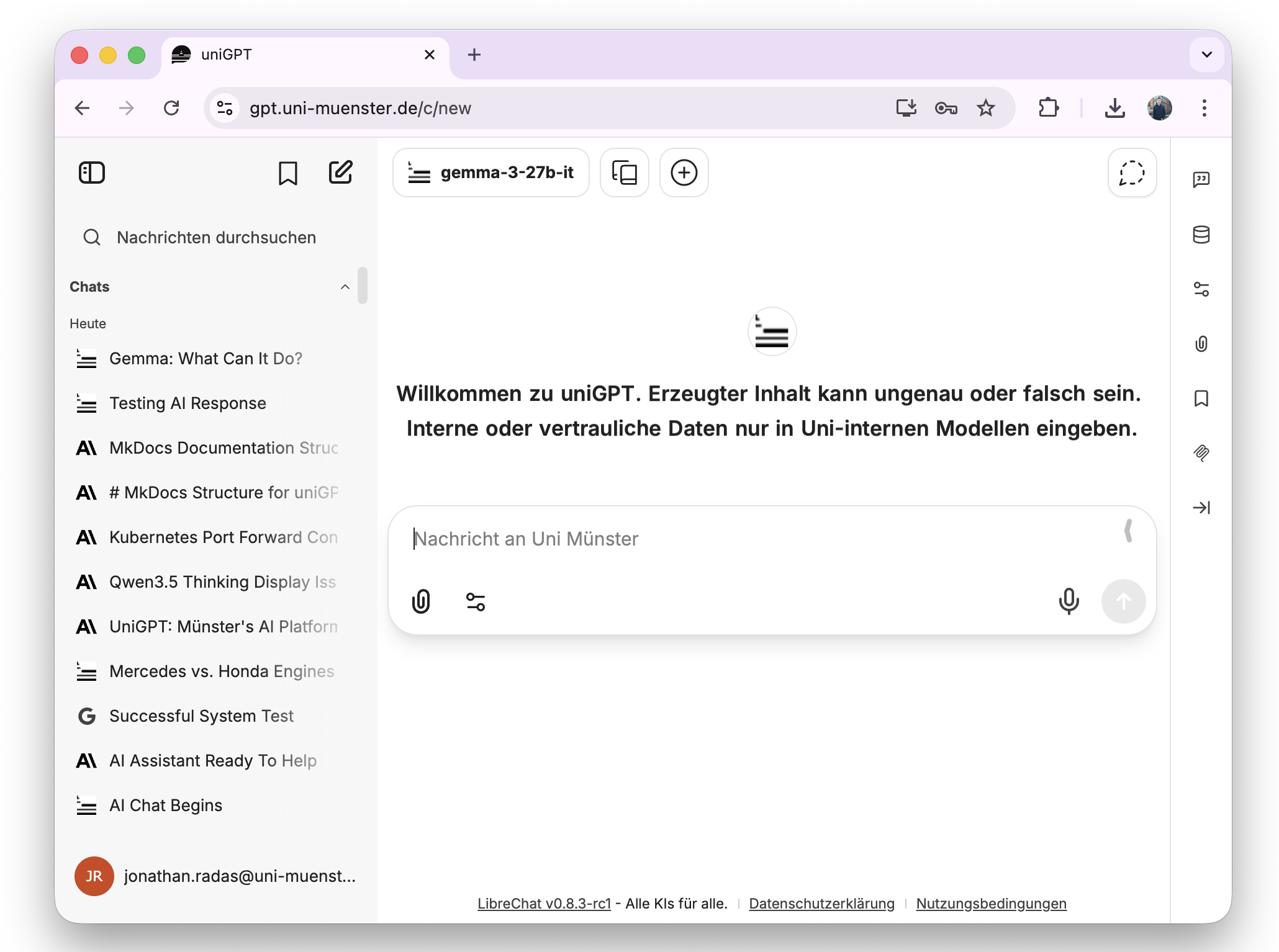
Starting a Conversation
- Log in at gpt.uni-muenster.de.
- Select a model from the model dropdown at the top of the chat.
- Type your message and press Enter or click Send.
Switching Models
You can switch between models at any time — even mid-conversation. Simply select a different model from the dropdown menu. This is useful for comparing outputs across models.
Uploading Documents
You can upload documents (e.g., PDFs) directly into the chat. The model will parse and use the content to answer your questions.
Simply click the attachment icon (📎) next to the input field and select your file.
Searching Chat History
You can search through your previous conversations using the search functionality in the sidebar.
Note
This feature searches across all your past chats, making it easy to find previous results.
Archived Chats
You can access archived chats by clicking on your profile picture in the bottom-left corner and selecting archivierte Chats.
Copying Responses
When you copy a model's response, the reasoning/thinking text is also included for models that support a reasoning mode. (Whether this can be disabled is currently under review.)
Signing Out
Click on your username in the sidebar, then select Sign out.
Legacy Chats
If you had conversations in the old system (before February 2026), they are available at gpt-legacy.uni-muenster.de. You will need to log in again separately.